
How to use LibOrate
Welcome to LibOrate! Please follow the instructions below to learn how to install, use, and manage the LibOrate app in your Zoom desktop client.
1. Installation: Adding the App from Zoom Marketplace
Follow these steps to add LibOrate to your Zoom client:
- Navigate to the Zoom App Marketplace and sign in to your Zoom account.
- Search for “LibOrate” in the search bar.
- Click the Add button.
- A permission authorization window will appear. Click Allow to authorize the app.
- Once authorized, open your Zoom Desktop Client.
- Click on the Apps tab. LibOrate will now be listed under My Apps.
Note: Ensure the Zoom account logged in on your browser is the same one you are using in the Zoom Desktop Client.
Troubleshooting: If you cannot find the app or encounter installation errors, please refer to the Troubleshooting Section below.
2. LibOrate Features & User’s Guide
📛 Name Tag
Self disclosure is hard, yet clinically proved beneficial for both people who stutter and their listeners. Name Tag provides a way to easily and more naturally disclose about your stutter. But it can also be customized to share anything else that you may want others to know about you that might not be obvious on screen but open a window for deeper connection and support (e.g. “lost my voice to a cold”).

- What it does: Display your pronouns, preferred name, introduction to other participants to foster inclusivity.
- Prerequisites: Your video must be turned on.
- How to use:
- In the app panel, find the Name Tag settings.
- Fill in your Full Name, Preferred Name, Pronouns, and optional Self-Disclosure info.
- Toggle Enable Name Tag.
- Visibility: When enabled, this overlay is visible to all participants in the meeting.
💬 Disclosure Message
Think of it as a PSA, an advocacy, and a radical act of self-care! Sometimes a simple disclosure is just not enough, and sometimes people are genuinely interested at learning more. This feature allows you to broadcast a customized, pre-written message to the meeting chat to elaborate anything you want people to know, e.g. what is stuttering and how to support you and a speaker who stutters in general.
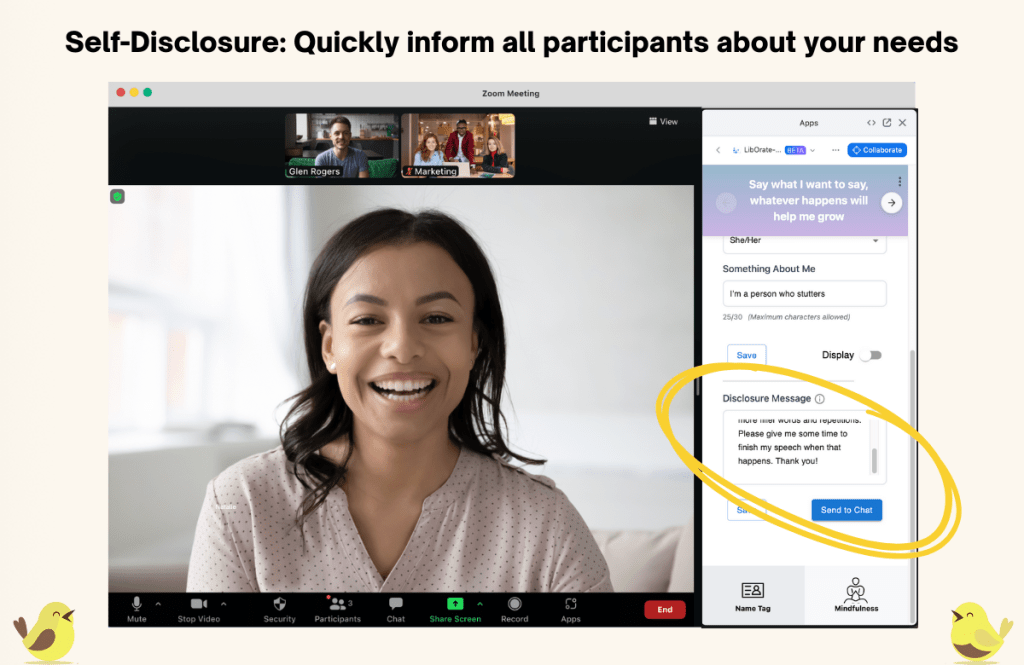
- What it does: Quickly inform all participants about your communication needs or style (e.g., “I have a stutter, please give me time to finish my speech”) by send a pre-written message to the meeting’s chat channel.
- Prerequisites: Meeting Chat must be enabled by the host.
- How to use:
- In the Name Tag section, look for the Disclosure Message field.
- Customize your message or use the default text.
- Click the “Send to Chat” button. Your message will be instantly posted to the public Zoom Chat for everyone to see.
👋🏼 Waving Hand
Remember the last time you use your hands communicate in an in-person meeting? Either a thumbs up, a waving hand for attention, or a clapping, it feels so natural yet powerful! Let’s double down on the non-verbal channel and share your thoughts without necessarily opening your mouth. The emoji’s just don’t cut it, we are designing some more expressive and visible, such as a thumbs-up followed by text that says “I support!”.
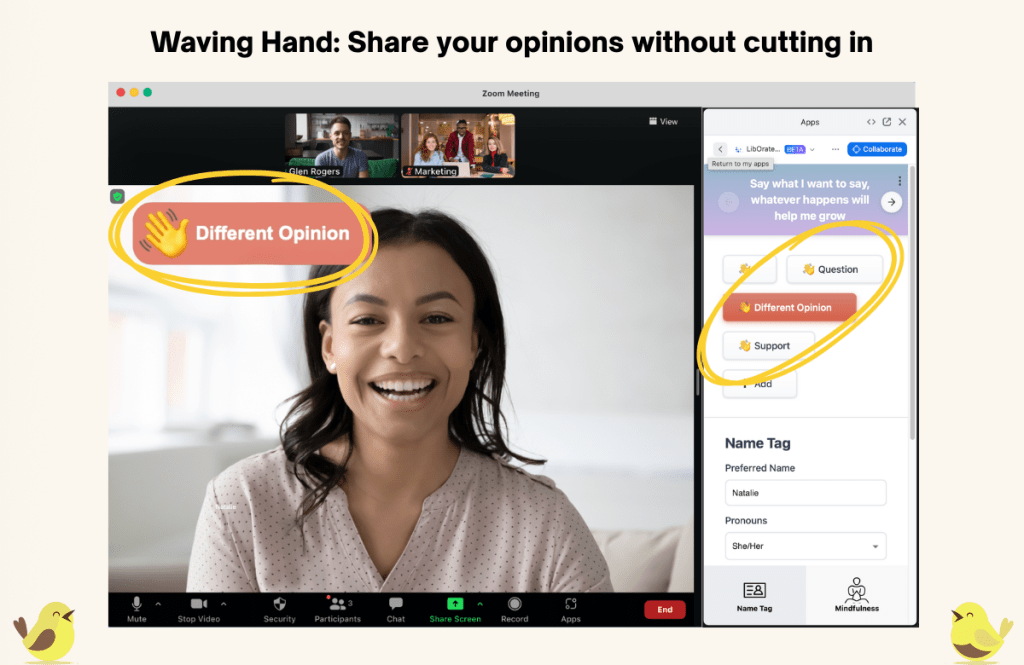
- What it does: Non-verbal communication to signal “I’m not done” or “I have a question” without interrupting the speaker verbally.
- Prerequisites: Your video must be turned on.
- How to use:
- In the app panel, select the Hand Wave icon you wish to display.
- The message will appear in the top-left corner of your video window.
- Click the button again to deactivate/remove the message.
🧠 Cognitive Messages
As people who stutter, we get it – meetings can be tough, and speaking up can feel vulnerable. Sometimes, we all need a little extra emotional support – a personal prep-talk – to get through those moments and make our voices heard. Instead of a pile of sticker notes stuck to your monitor, we’ve created a deck of customizable cognitive messages designed to support you, build confidence, and help you show up as your full self!
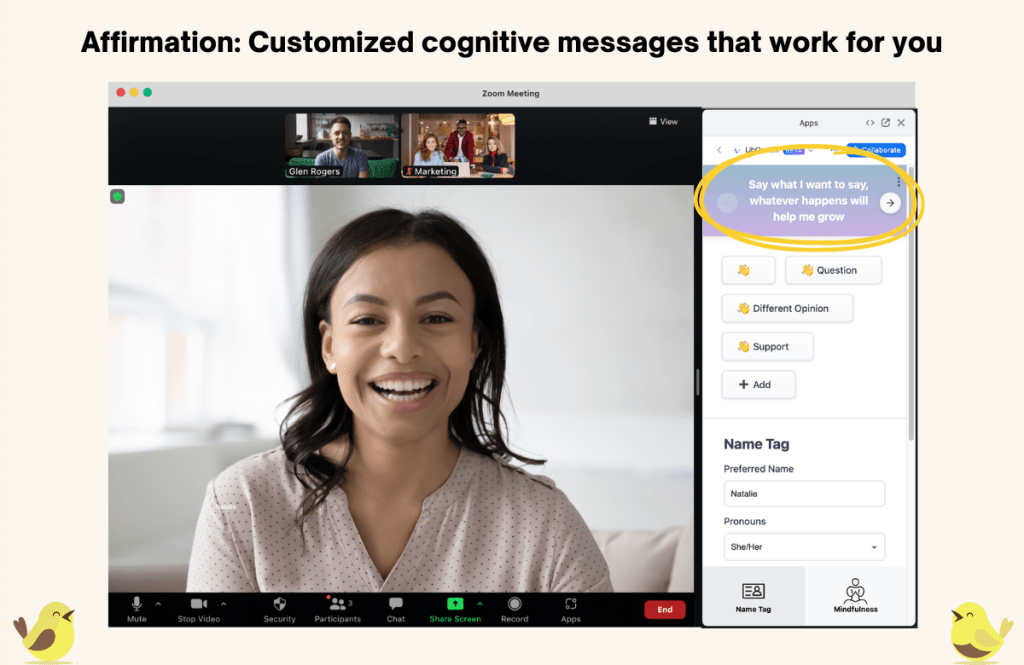
- What it does: Display personalized affirmations or reminders privately during a meeting to help boost confidence or manage anxiety.
- Prerequisites: None.
- How to use:
- Open the LibOrate app from the Apps panel during a meeting.
- Select a pre-set message or type a custom message (up to 500 characters).
- Click to activate. The message will appear in your app panel, visible only to you.
- Drag the lower border of the message to adjust the message font and background size.
🧘🏽♀️ Mindfulness
Virtual meetings can be exhausting, especially when they are back-to-back. Take a moment between meetings to reset, or ground your attention before you speak. We have designed a set of short, guided mindfulness exercises to support these moments. And don’t worry – they stayed muted unless you choose to unmute them.
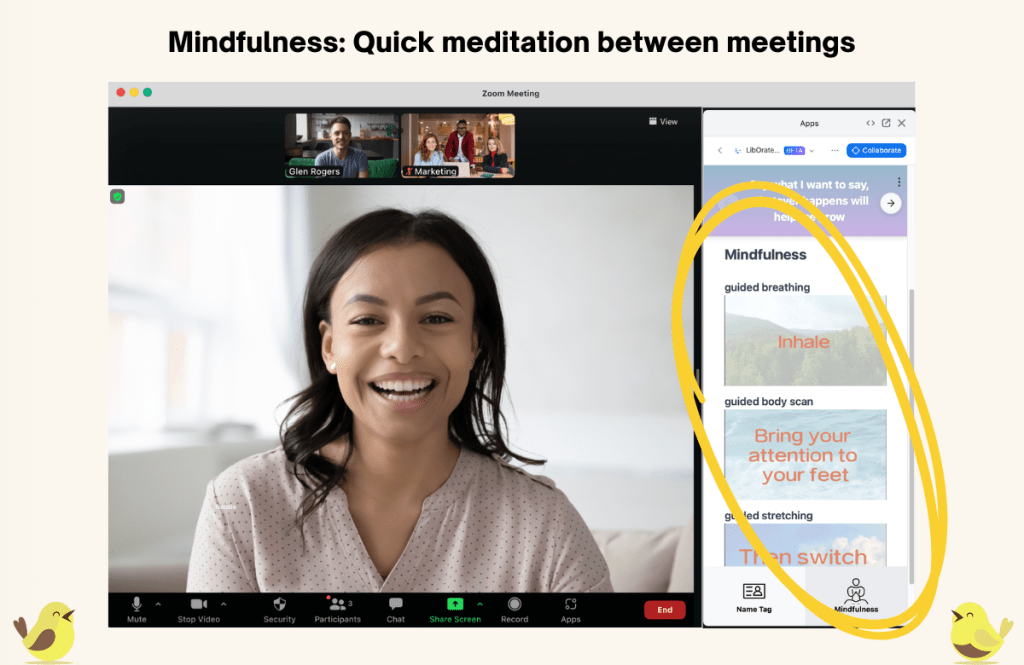
- What it does: Perform quick guided exercises (Body Scan, Stretching, or Breathing) to reduce stress and build mindfulness habits during and between meetings.
- Prerequisites: None.
- How to use:
- In the LibOrate app panel, select the Mindfulness section.
- Choose your desired exercise type (Body Scan, Stretching, or Breathing).
- Click the video to play. Follow the visual and text instructions for mindfulness practice (Note: Audio is off by default).
3. Uninstallation: Removing the App
If you wish to uninstall LibOrate, please follow these standard procedures.
Steps to uninstall:
- Navigate to the Zoom App Marketplace and log in your zoom account.
- Click Manage (top right) > Added Apps.
- Locate “LibOrate” in the list.
- Click Remove.
Implications of Removal & Data Handling:
- De-authorization: Removing the app revokes LibOrate’s access to your Zoom account details. You will no longer be able to access features like saved Cognitive Messages or customized Name Tags within Zoom meetings.
- Data Deletion: Upon removal, your personal settings and authentication tokens are removed from the active session. Any persistent user data stored on our servers (such as custom saved messages) will be deleted or anonymized in accordance with our Privacy Policy.
4. Troubleshooting & FAQ
Q: I clicked “Add” but don’t see the app in Zoom. A: Please ensure you are using the same zoom account.
Q: Can others see my Cognitive Messages? A: No. Cognitive Messages are private and visible only to you. However, Name Tag and Hand Wave features are visible to all participants when activated.
 LibOrate